App Store listing verified · Official manual

Shadowrocket
Purchase, setup & connections

A rule-based proxy client for iPhone / iPad, with rule-based routing and a one-time purchase through the App Store. This manual covers verifying the official listing, importing an existing config, and checking connections.

  • Global Routing
  • On Demand
  • Hysteria2

Check the App Store page for device compatibility, system requirements, and eligibility for Universal Purchase.

Get the app / Verify the listing first

App Store access and device info
Watch for copycat apps

Shadowrocket is available only on the App Store. Use the name as a starting point for your search, then verify the developer, App ID, and official icon on the product page. If a page asks you to get the app outside the App Store, stop and return to the product page to verify it.

iPhone

Check the App Store compatibility section, then follow the store prompts to purchase or restore your purchase. The first time you enable a connection, iOS asks to add a VPN configuration; check the app name in the prompt before confirming. Purchasing the app does not configure a server. You will still need to import your own subscription or server details.

See how to get Shadowrocket on iPhone →

iPad

Use the Apple ID used for the purchase to check purchase history and device compatibility in the App Store. A purchase can be shared between iPhone and iPad; check the product page for details. A larger screen does not change what configuration fields mean. After switching devices, check the current server, Config, and permissions rather than assuming the setup is ready because the app is installed.

See how to get Shadowrocket on iPad →

Shadowrocket is also available from the same App Store on Mac / Apple TV. Check the product page for compatibility and system requirements.

View the steps to get Shadowrocket →
On the App StoreGet Shadowrocket
Feature overview

Rule-based routing and configuration management

First identify the type of existing config, then choose a routing method. These six features cover request handling, connection conditions, server details, bulk updates, config management, and troubleshooting. They are not interchangeable switches.

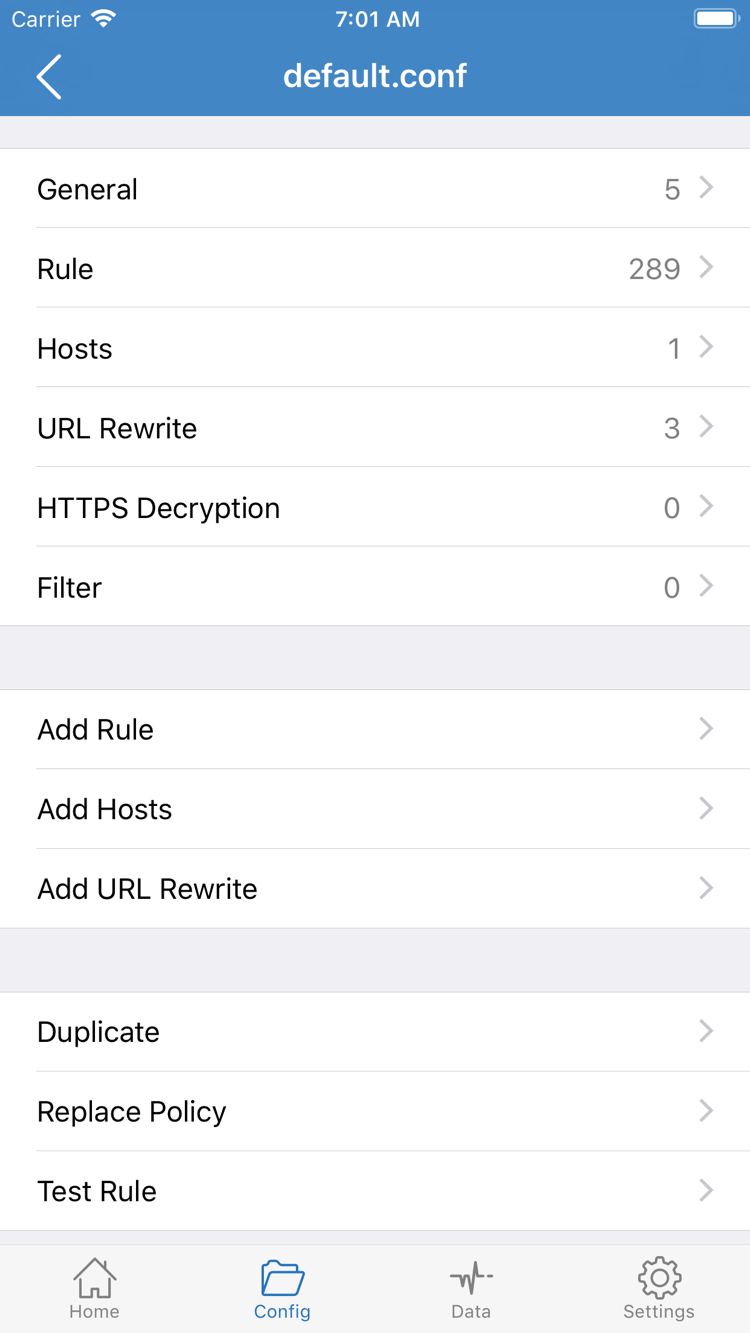
Official Shadowrocket configuration editor showing General, Rule, and Hosts

Route requests according to rule order

Rule-based routing sends different requests through different routes. In Home, set Global Routing to Config to match requests against the rules in the active config. DOMAIN-SUFFIX matches domain suffixes, IP-CIDR specifies an address range, and FINAL handles requests that did not match earlier rules. When troubleshooting, check rule order first, then the assigned policy; later rules do not override a rule that has already matched. example.com is used here only to explain the syntax, not as a ready-to-use configuration.

Getting started

Import, choose a mode, test the connection

These steps assume you already have your own subscription or server details. For the initial setup, make a manual connection and test real access before adding automatic connection conditions or complex rules. This makes it easier to pinpoint where an issue occurs.

01Add Server / Subscribe

Make sure your existing config appears in SERVER

To add a server manually, select the matching Type in Add Server and enter the address, port, and authentication details. For a subscription, select Subscribe, paste the complete URL, and save. Before using Scan QR Code, make sure the QR code comes from your own config. Return to Home, confirm that SERVER shows the expected entries, then select one. If the list has not changed, troubleshoot the import or update rather than repeatedly toggling the connection.

A subscription URL, a single-server share, and a Config file are different kinds of data. Use the import option that matches the content. If unsure, check with the provider of your existing config instead of truncating the content and trying it in a different field. When entering details manually, check for extra spaces, line breaks, and a complete numeric port.

02Global Routing

Understand Config, Proxy, and Direct

Global Routing controls the overall routing mode. Config applies the rules in the active config; Proxy sends applicable requests through the selected proxy; Direct uses a direct connection. Usually, follow the instructions for your existing config and select Config. Compare other modes temporarily only when troubleshooting. Successful access in Direct does not prove that the server details are correct. If access works in Proxy but fails in Config, check the rules and related DNS settings.

Note the original selection before changing modes, and confirm which Config is active. Check the mode, server, and config file one at a time; changing several at once makes it hard to tell what affected the result. After testing, restore the settings you need for everyday use rather than leaving a temporary troubleshooting setup in place.

03Home / Connectivity Test

After granting permission, test with a real request

Turn on the connection switch in Home. The first time iOS prompts you to add a VPN configuration, verify the app name and follow the system prompts to allow it. Then check the connection status, run Connectivity Test, and visit a specific service you need. A connected status means the connection has started; it does not confirm that server authentication, DNS resolution, or every routing rule is working as expected. Test actual access as well.

If a connection fails, first check that your local network is working, then verify the server details, subscription validity, and routing mode. Save the error message and steps to reproduce the issue; this is more useful than repeatedly toggling the connection. Before sharing logs, remove personal credentials such as passwords, keys, and subscription URLs. The full guide covers first-time permissions, import options, and a step-by-step troubleshooting process.
View the full guide →
App Store listing and purchase

Verify the app, then understand what the purchase covers

Shadowrocket is a closed-source commercial app. This official site and manual are based on information verified on the App Store product page and in the app. Check purchase status, price, device compatibility, and system requirements at the time you use them.

Official Shadowrocket App Store icon

Three details to verify

  • Developer Shadow Launch Technology Limited
  • App ID 932747118
  • Match the official icon

Same name does not mean same app

On the App Store page, first check that the developer is Shadow Launch Technology Limited, then verify id932747118 in the URL, and finally compare the official icon. All three should match; do not rely on search ranking, the name, or a similar-looking graphic alone. The official icon shown here helps identify the app. Complete any purchase in the App Store.

If search results do not look right, return to the Get the App page and use the direct product link. The store's language and local currency may vary, but you should still verify the developer and App ID.

See how to verify the official listing →

What the one-time purchase covers

The client is a one-time purchase. The US reference price is $2.99; the actual price is shown on your local App Store page. The purchase gives you the right to use the Shadowrocket client; it does not provide a working server or configure your network. Before using the app, make sure you already have valid server details or a subscription.

Prices are shown in local currencies and vary by storefront. Check the price at checkout before purchasing. The client price is separate from any proxy service charges; the subscription import option is not a place to buy services within the app.

See pricing and one-time purchase details →

Restore purchases and use on multiple devices

When switching devices or reinstalling, first make sure the App Store is signed in with the Apple ID used for the purchase, then look for Shadowrocket in your purchased items. A purchase can be shared between iPhone and iPad; check the App Store page for device compatibility and Universal Purchase eligibility. Restoring the app does not restore its config. After reinstalling, check the server list and active Config separately.

If the store still shows a price, do not purchase again right away. Check the account, purchase history, and app identity first, then follow the App Store's guidance. Check the store page for current details about Family Sharing eligibility.

See how to restore purchases after switching devices →

App Store availability and updates

Whether the app appears in search results depends on the current App Store storefront and account status. The product page's compatibility section shows whether your device meets the requirements; this site does not list fixed system requirements. Even if you purchased the app on another device, check compatibility again on the new device instead of relying on its name.

App updates are managed through the App Store; check the product page for update history. Before updating, keep a copy of any config you may need to restore. After updating, check the selected server, Config, and connection status. This manual retains English interface terms so you can find them in the app; if the layout changes, use the current in-app labels as your guide.

See App Store availability and compatibility →
Blog and guides

Connection troubleshooting and settings

Once the basic connection works, read the guide that addresses your specific issue. Speed, DNS, and protocol fields are separate topics. Identify the symptoms and review the current config before choosing what to check; changing everything at once makes it harder to draw useful conclusions.

View all articles →