Shadowrocket Getting Started Guide
Start with an existing configuration: add a server or subscription, choose a routing mode, then connect and test. This guide covers the initial setup on iPhone and iPad, with checks in order.
Screenshots help identify screens and fields; example values may differ from your configuration. Available fields can vary by Type and settings, so follow what the app currently displays. Don’t post your full subscription URL, password, or key publicly.
Add Server: Add or Import
Choose either method. A subscription URL retrieves a set of server details; for a single server, enter each field according to its protocol.
Have a Subscription URL? Choose Subscribe
Open Home in Shadowrocket, tap Add Server, then tap Type and select Subscribe. Paste your complete subscription URL into the URL field, add a note to help identify it, and save. Use a URL that returns subscription content, not a provider’s login or information page. The URL may end with authentication parameters—keep them intact when copying, and don’t add quotation marks, spaces, or line breaks.
After saving, return to Home and check whether the subscription group and server entries appear under SERVER. If the app reports a request failure or shows a group with no entries, don’t connect yet. Check that the URL is still valid, its content is supported, and your current network can retrieve it. Retrieving a subscription and connecting to a server are separate steps; a saved subscription doesn’t mean every server in it will connect.
To update a subscription later, use the update action for its group, then check your current selection again. The remote content may rename entries or remove old ones, so confirm that the server you previously selected is still there. To keep things clear, there’s no need to import the same URL repeatedly during initial setup. Check one group first, then manage additional configurations.
Have Details for One Server? Check Type First
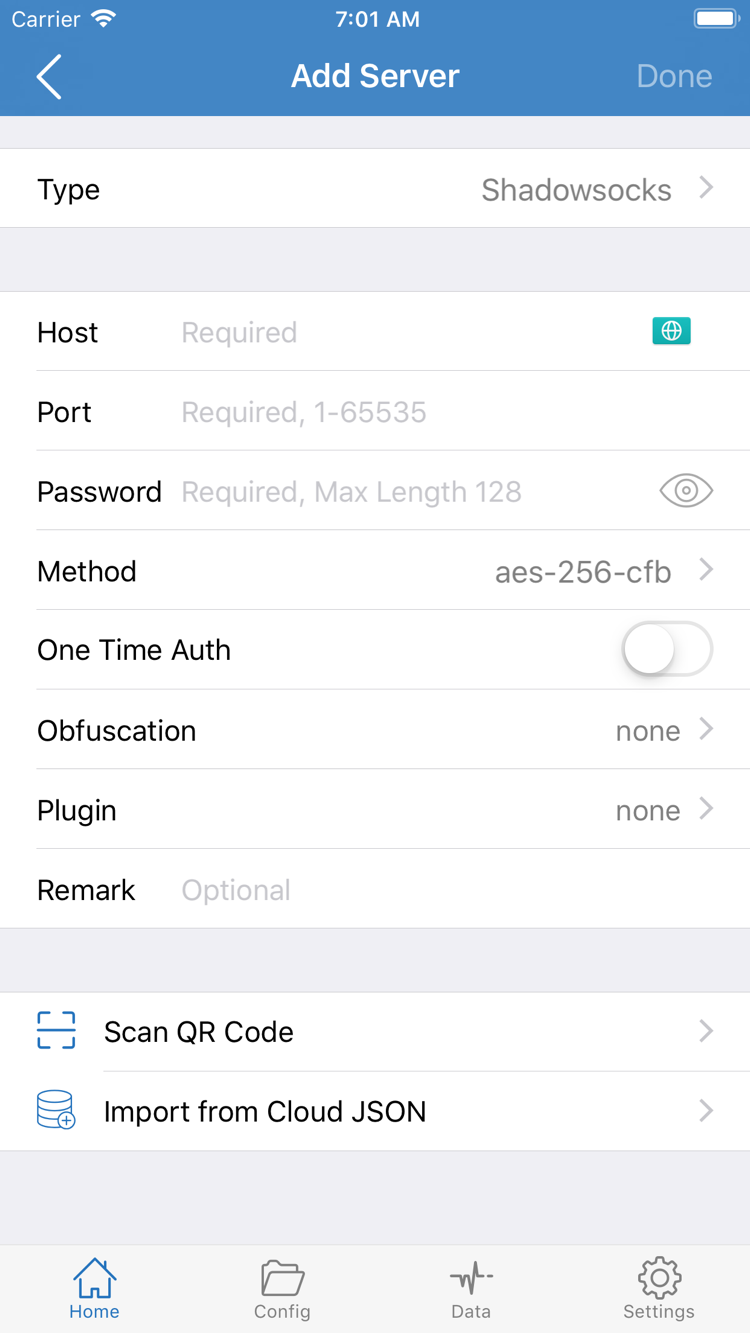
If you have a server address, port, and authentication details rather than a subscription URL, choose the protocol that matches the server under Type in Add Server. Then enter the Host, Port, and any required Password, Method, or other authentication fields. The screenshot shows one combination of fields; protocols don’t all use the same fields. With the wrong Type, the connection may fail even if the address and password are correct.
Enter the hostname or address provided for the server in Host and its port in Port. Don’t paste a full webpage URL into Host. Passwords and keys are usually case-sensitive; check for leading or trailing spaces after pasting. Choose Method only when the protocol requires it, using the value in your original details rather than guessing based on a similar name. Keep additional fields such as TLS, SNI, and transport settings consistent with the original configuration. For unfamiliar fields, see the quick reference; for protocol design choices, see the protocol guide.
If you have a supported QR code, use Scan QR Code and grant camera access when prompted. Import from Cloud JSON is another option; don’t assume a regular subscription URL can be used as a JSON address. Whichever method you use, return to Home after saving and check that the entry’s name and type are as expected. Proceed only once you can see the server in the list. This confirms the details were saved, not that the connection has been tested.
Global Routing: Choose a Routing Mode
A server entry determines where to connect. Global Routing determines how requests are handled, while rules in Config apply when you use that mode.
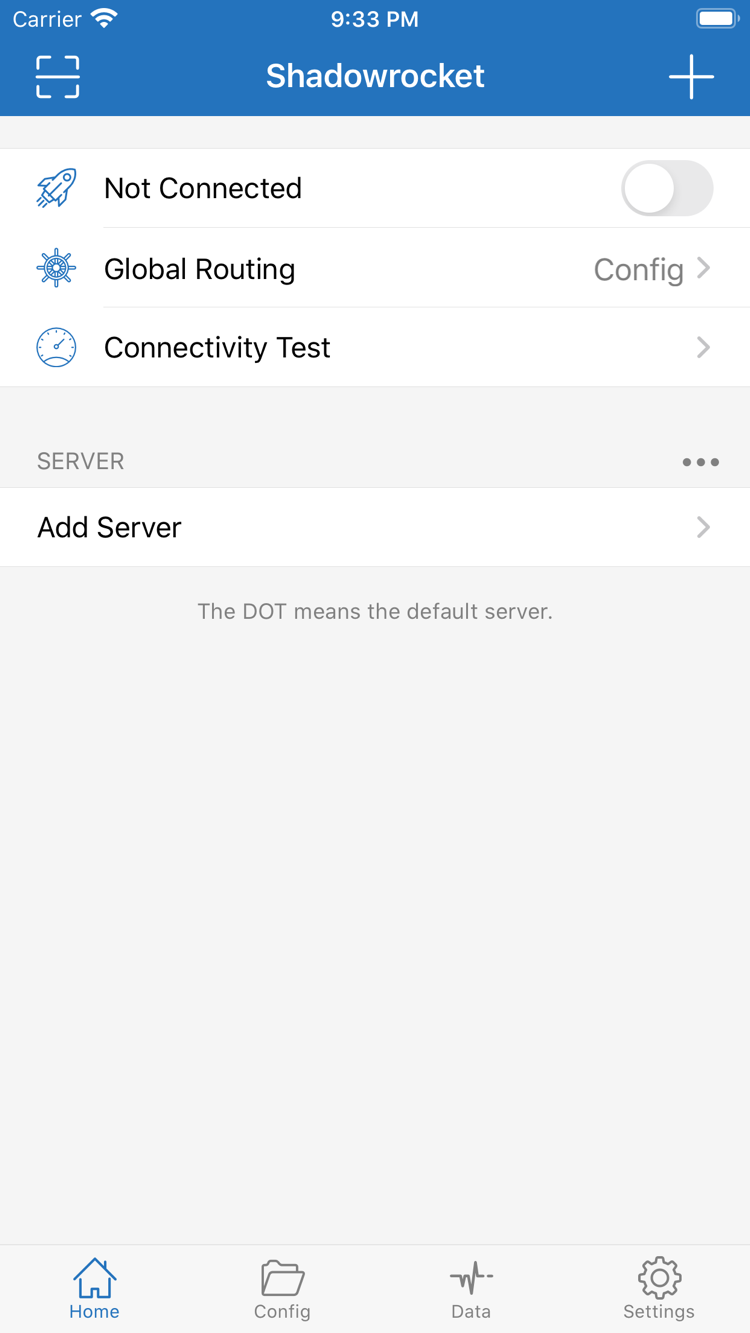
Return to Home and tap Global Routing to check the current selection. Start by distinguishing these three modes: Config / Proxy / Direct. The connection switch alone doesn’t tell you which route a request takes. With the same server selected, behavior may differ depending on the routing mode.
Config: Apply the Current Rules
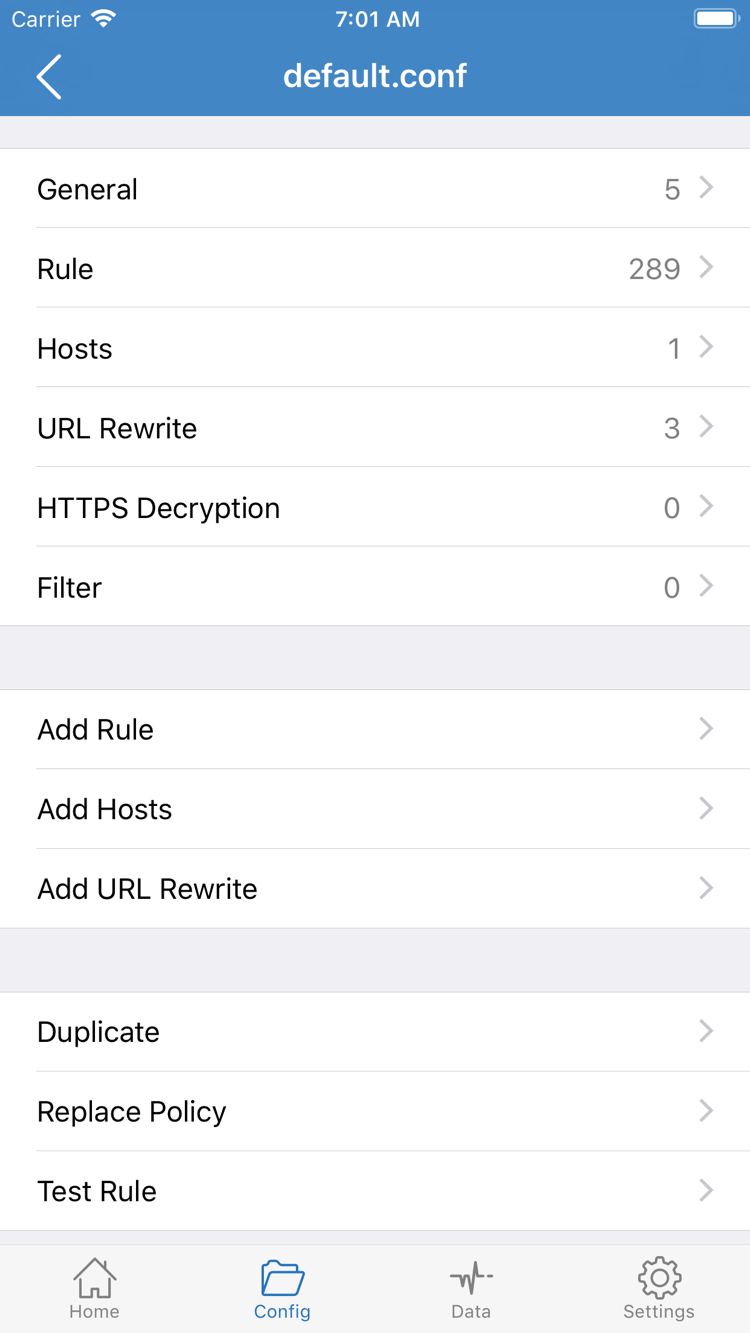
When Config is selected, the app handles requests according to the rules in the current configuration. Open Config and confirm that the file you want to use is selected, then check whether Rule includes rules for your needs. A configuration may also include DNS and other settings, so importing a server subscription and choosing a rule configuration are separate tasks. Having a subscription does not mean you already have a complete configuration with suitable rules.
General, Rule, Hosts, URL Rewrite, and HTTPS Decryption are separate sections of configuration editing. You don’t need to enable or change each one when connecting for the first time. In particular, don’t change HTTPS Decryption just to get a regular connection working; it isn’t required for basic connectivity. To review rules, start with Rule. Use Add Rule only once you understand what you’re changing, and keep the original configuration so you can restore it.
Rule keywords must remain unchanged. For example, DOMAIN-SUFFIX,example.com,PROXY matches the specified domain suffix and applies the corresponding action; FINAL,DIRECT is one way to handle requests that don’t match earlier rules. These snippets illustrate the syntax—they aren’t intended to replace your configuration. Rule order, actions, and the selected server all affect the result. Look up unfamiliar keywords instead of copying a single line and expecting it to provide a complete configuration.
Proxy and Direct: Compare Routing Paths
Proxy routes requests through the proxy, which can help you check whether the selected server handles the traffic you’re testing. Direct uses a direct connection, letting you compare behavior on your local network. These are routing modes, not additional servers, and they won’t correct authentication details. After troubleshooting, switch back to the mode you actually need rather than leaving a temporary test mode selected.
Before you begin, decide what you need to test. If you have a trusted rule configuration and want requests handled according to its rules, select Config and check the active configuration. To compare the server route with your local network, test the same page under Proxy and Direct. Change one setting at a time and note the selection; changing the server, rules, and DNS together makes it hard to identify what affected the result. When ready, return to Home and connect.
Home: Connect and Grant VPN Permission
Select a server, check the routing mode, then turn on the switch at the top. The system displays the first VPN configuration prompt.
Select a Server Under SERVER
Return to Home and tap the server you want to use under SERVER. Check that the selection indicator is beside the expected entry. If you’ve just updated a subscription, make sure the selected entry hasn’t changed. A server name is only a label; it doesn’t confirm that the address, authentication details, or remote server are valid. For your first test, stick with one entry rather than switching between servers.
Next, check the current mode shown in Global Routing. If you plan to use Config, make sure you checked the configuration file in the previous step. If you’re comparing Proxy and Direct, note which mode you’re testing. Then turn on the switch at the top of Home. Before connecting, the top of the screen shows Not Connected. After switching it on, wait for the app to update the status; don’t tap the switch repeatedly.
Review the System Prompt and Grant Permission
When connecting for the first time, the system may ask whether to allow a VPN configuration. This lets Shadowrocket handle network requests on your device according to the selected settings. Confirm that the prompt is for Shadowrocket, tap Allow, and complete any authentication required by the system. If you decline or cancel, the connection may not proceed. Return to the app and try connecting again, checking the system prompt—you don’t need to reimport your subscription.
Granting permission doesn’t purchase server service or confirm that a server has been tested. A VPN status in the system only means that the related connection or configuration is active; it doesn’t prove that every page will load. If you’ve used another VPN configuration, check whether it’s still active or whether a device management restriction applies. Don’t delete a configuration managed by work or school unless you understand its purpose.
Wait for a Stable Status Before Browsing
Return to Home and check whether the connection status at the top stays stable. If the switch turns off immediately, keeps retrying, or shows an error, note the message and go to the troubleshooting section rather than making more changes. If the status is stable, run Connectivity Test, then open the page you need. Follow the same steps on iPad; control placement depends on the current app layout, but the key interface labels are the same.
For your first connection, keep On Demand in a clearly understood, controllable state and don’t add conditions yet. Once you can reliably connect, disconnect, and test manually, learn how automatic triggers work. If the connection then comes back on its own, you’ll be able to tell whether it was a manual action or an On Demand condition, making troubleshooting easier.
Connectivity Test: Verify the Connection
Check saved configuration, established connection, target access, and rule matching separately. Don’t treat one status as proof of everything.
Run a Test, Then Visit the Same Destination
Tap Connectivity Test on Home and wait for the result. Interpret it in light of Test Method in Settings: methods check different parts of the connection, and response time isn’t your actual download speed. A response from one test doesn’t mean every app or website will work; a failed test alone doesn’t prove the server is unavailable. Note the result, then try accessing a real destination.
Open a browser and visit the page you need. Check that it loads fully, not just that a title or cached content appears. Reload if needed so you don’t mistake cached content for a successful connection. If the browser works but an app doesn’t, check whether the issue is limited to that app, whether it needs a new request, and whether it uses the same destination domain as the browser.
Record Results at Four Levels
| What to Check | What You See | What You Cannot Conclude |
|---|---|---|
| Configuration saved | The expected entry appears under SERVER | The server is definitely available right now |
| Connection established | The Home connection status remains stable | Every destination will be accessible |
| Test responds | Connectivity Test returns a result | Actual bandwidth or performance across all services |
| Destination accessed | The destination loads fully | The request matched the expected rule |
To verify rules, rather than just confirm access, check available connection records or diagnostic information for the rule and action applied to the request. Under Config, a page may open through DIRECT or PROXY; you can’t tell which by looking at the page alone. Use one clearly identified request during testing to avoid confusion from records for many open pages.
Keep comparison tests as consistent as possible: use the same destination and server, changing only Global Routing or one factor you’re checking. If Direct works but Proxy fails, check the proxy route and server details first. If Proxy works but Config doesn’t, focus on the active configuration’s rules and DNS. After testing, return to your intended mode and keep a verified copy of the configuration for comparison when making future changes.
Settings: Common Issues
Change one factor at a time. Identify where the failure occurs before deciding whether to change a setting.
Subscription Fails: Check Whether Content Is Available
If the import or update fails, check that the URL is complete and still valid, and that your current network can reach it. A URL may open in a browser but return a login page, error page, or unsupported content that the app can’t recognize as a subscription. Don’t share the full URL with an unfamiliar checking site; it may contain access credentials. Ask your existing provider to confirm the content if needed, rather than changing all your connection settings first.
Server Listed but Won’t Connect: Check Fields and Permissions
If an entry appears in the list but won’t connect, check Type, Host, Port, and authentication fields, then review any additional parameters required by the protocol. Don’t troubleshoot by randomly changing Method, TLS, or transport settings. For a subscription configuration, update it and check that the entry is still valid; for manual setup, compare each field with the original details. If VPN permission hasn’t been granted, return to the connection steps. An authentication error points to the server fields, not a need to request permission again.
Connected but Can’t Open Pages: Check DNS and Rules Separately
If the connection stays up but a destination won’t load, compare the same destination in Proxy and Config. If the issue occurs only in Config, check that the right configuration is selected, that Rule doesn’t route the destination incorrectly, and that DNS can resolve it. A DNS resolution failure and a remote connection failure are different issues; don’t change DNS, rules, and server settings all at once just because a request timed out. See DNS and networking terms for definitions and FAQ and troubleshooting for common symptoms.
If only some pages or apps fail, note the specific destination and conditions; this is more useful than saying that nothing connects. If all tests fail, first confirm that your local network works, then compare results on another network you’re authorized to use. Switching networks changes the conditions, so record a fresh result rather than mixing it with the previous test.
Inconsistent Tests or Unexpected Reconnection: Check Settings
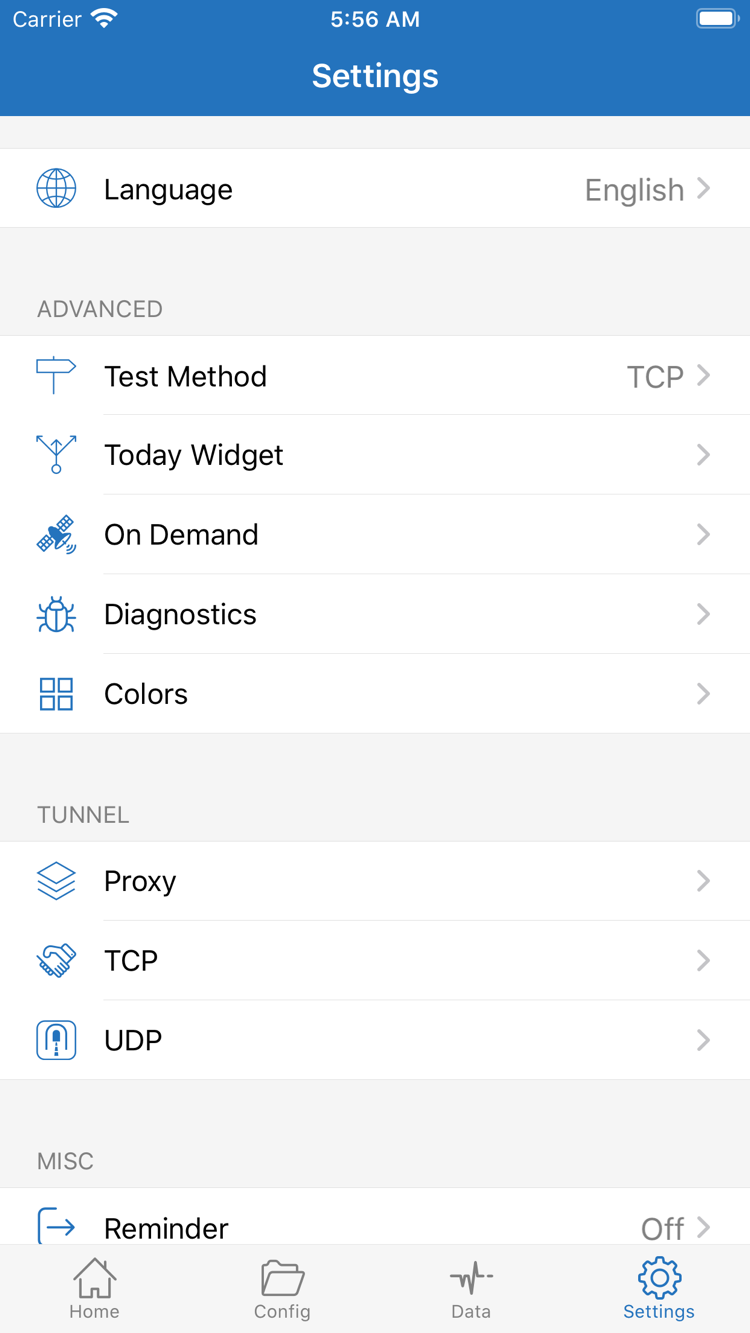
Open Settings and check Test Method first so you know which method Connectivity Test uses. Compare results using the same method. On Demand may trigger a connection under certain conditions. If the connection comes back after you disconnect manually, review any existing On Demand conditions instead of repeatedly toggling the switch. For initial troubleshooting, first make sure manual actions produce consistent results, then configure automatic behavior.
To investigate further, review the diagnostic items currently available in Diagnostics. Settings such as Proxy, TCP, and UDP affect specific connection behavior; they are not universal repair switches. Keep default or previously verified settings unless you understand why a change is needed. Repeat the same test after each change. If it doesn’t help, restore the original value to avoid accumulating changes you can’t trace.
Keep Useful Records and Hide Sensitive Details
When recording an issue, note the failed step, current routing mode, protocol type, error message, and whether the local network works or other entries fail too. Before sharing screenshots or diagnostics, hide the full subscription URL, authentication parameters, Password, keys, and personal addresses. Don’t post your entire configuration file when asking for help.
The initial setup is complete when your details are saved, routing mode is clear, permissions are granted, and access has been tested. If you still have an issue, continue with FAQ and troubleshooting for the relevant failure point. For help understanding protocol parameters, see the protocol guide. You don’t need to change every advanced setting during initial setup.