Getting started
Import, choose a mode, test the connection
These steps assume you already have your own subscription or server details. For the initial setup, make a manual connection and test real access before adding automatic connection conditions or complex rules. This makes it easier to pinpoint where an issue occurs.
01Add Server / Subscribe
Make sure your existing config appears in SERVER
To add a server manually, select the matching Type in Add Server and enter the address, port, and authentication details. For a subscription, select Subscribe, paste the complete URL, and save. Before using Scan QR Code, make sure the QR code comes from your own config. Return to Home, confirm that SERVER shows the expected entries, then select one. If the list has not changed, troubleshoot the import or update rather than repeatedly toggling the connection.
A subscription URL, a single-server share, and a Config file are different kinds of data. Use the import option that matches the content. If unsure, check with the provider of your existing config instead of truncating the content and trying it in a different field. When entering details manually, check for extra spaces, line breaks, and a complete numeric port.
02Global Routing
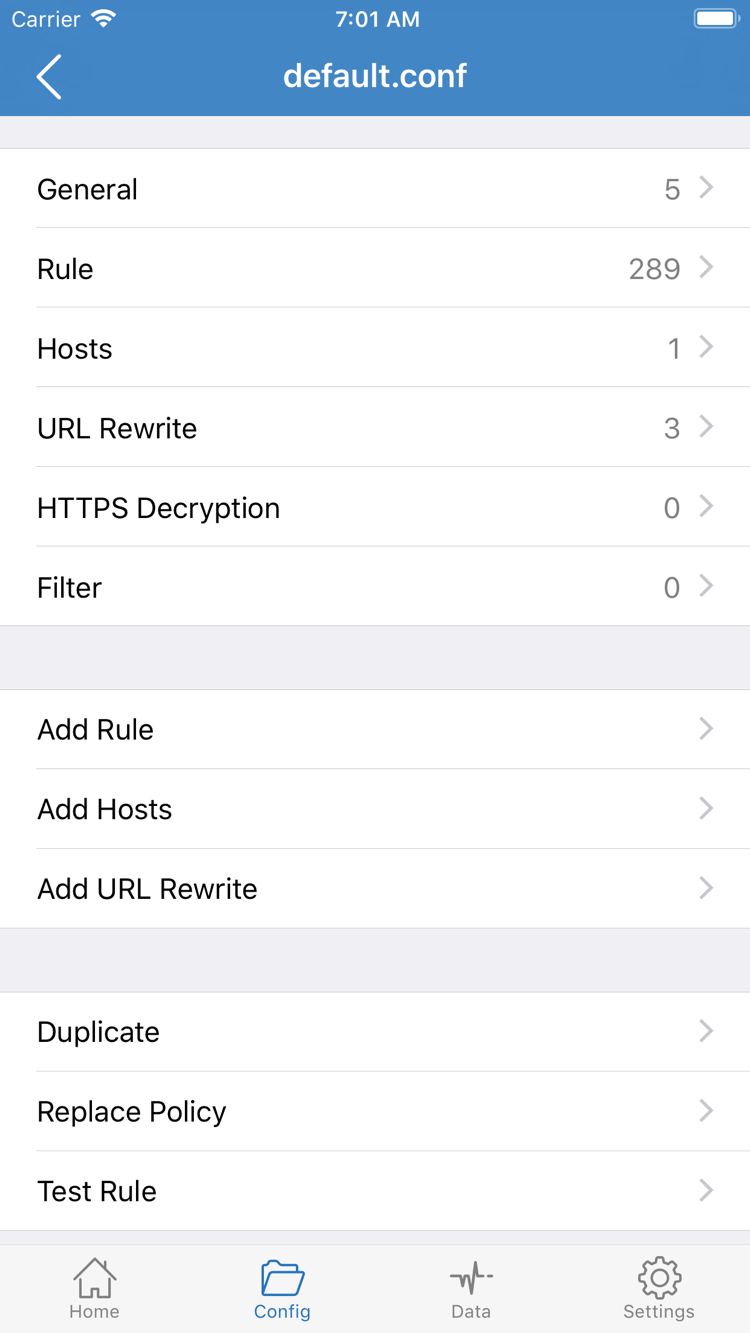
Understand Config, Proxy, and Direct
Global Routing controls the overall routing mode. Config applies the rules in the active config; Proxy sends applicable requests through the selected proxy; Direct uses a direct connection. Usually, follow the instructions for your existing config and select Config. Compare other modes temporarily only when troubleshooting. Successful access in Direct does not prove that the server details are correct. If access works in Proxy but fails in Config, check the rules and related DNS settings.
Note the original selection before changing modes, and confirm which Config is active. Check the mode, server, and config file one at a time; changing several at once makes it hard to tell what affected the result. After testing, restore the settings you need for everyday use rather than leaving a temporary troubleshooting setup in place.
03Home / Connectivity Test
After granting permission, test with a real request
Turn on the connection switch in Home. The first time iOS prompts you to add a VPN configuration, verify the app name and follow the system prompts to allow it. Then check the connection status, run Connectivity Test, and visit a specific service you need. A connected status means the connection has started; it does not confirm that server authentication, DNS resolution, or every routing rule is working as expected. Test actual access as well.
If a connection fails, first check that your local network is working, then verify the server details, subscription validity, and routing mode. Save the error message and steps to reproduce the issue; this is more useful than repeatedly toggling the connection. Before sharing logs, remove personal credentials such as passwords, keys, and subscription URLs. The full guide covers first-time permissions, import options, and a step-by-step troubleshooting process.